How to format a flash drive
How to Format USB Flash Drive from Command Prompt
For your information, any form of disk formatting will completely erase data, so backup as many as important files before the start. Altogether, you'll walk through the whole formatting process in eight steps, and the time spent will depend on the USB flash drive capacity and used space on it. (The following steps are performed on Windows 10 PC.)
Step 1: Type cmd in the search box, then you can get the best match called Command Prompt. Right-click on it and choose "Run as administrator".
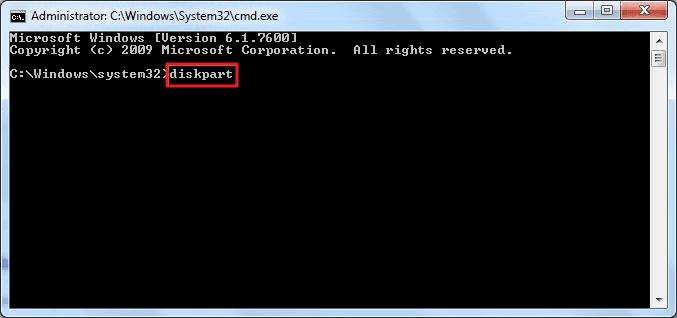
Step 2: On the Command Prompt window, type diskpart and press "Enter".
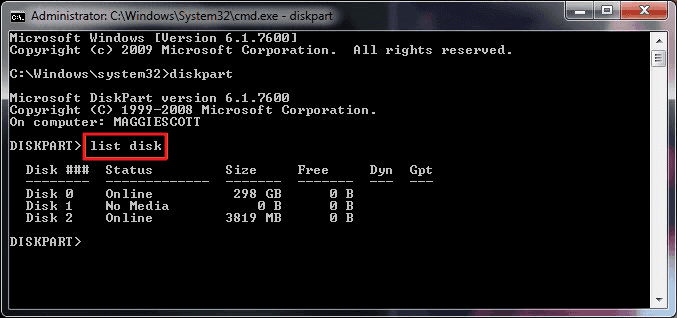
Step 3: Type list disk and press "Enter". According to the list disk information, check which disk is your USB flash drive. For example, disk 2.
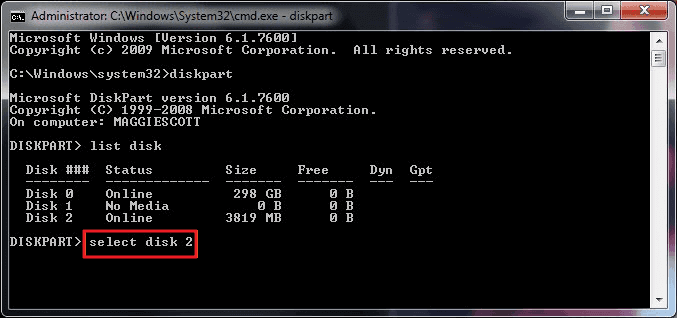
Step 4: Now type select disk 2 and press "Enter".
Step 5: Type clean. Wait some time for disk erasing.
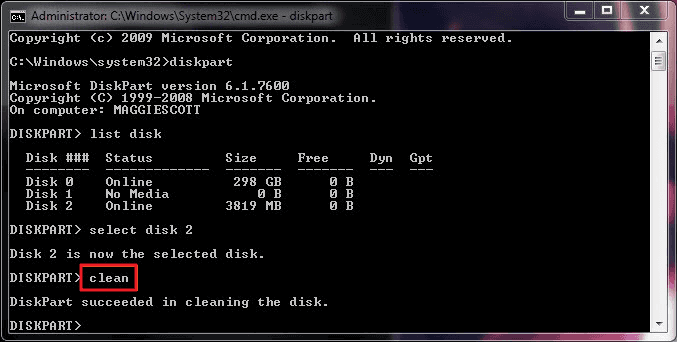
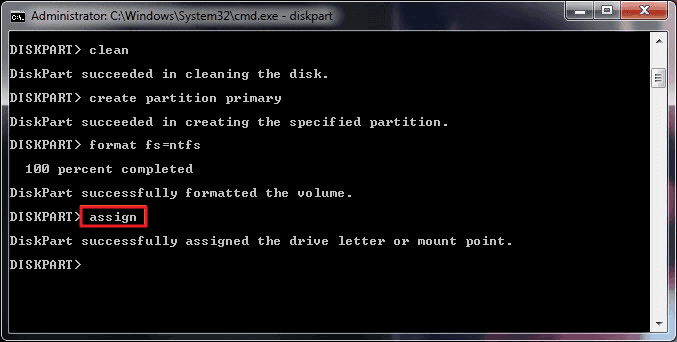
Step 6: Type create partition primary and press "Enter".
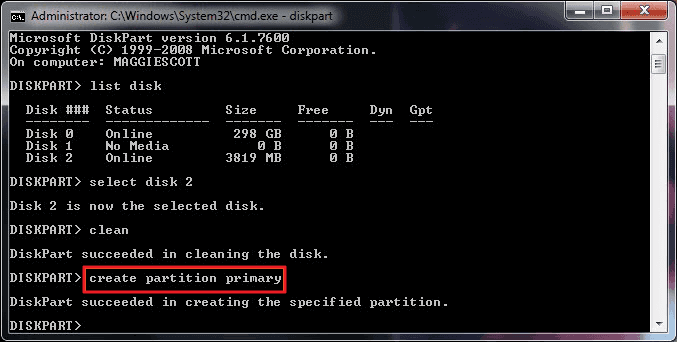
Step 7: After diskpart successfully created the specified partition, type format fs=ntfs and press "Enter". If you prefer other file system formats, change the command ntfs to the desired one such as fat32, exfat, etc.
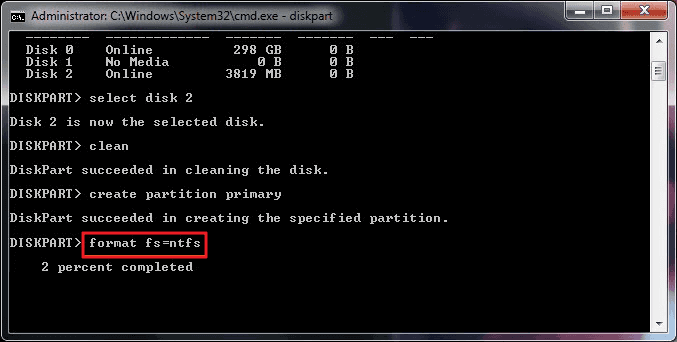
Step 8: Type assign to create a drive letter to the flash drive.