Parrot Os Installation Tutorial (3.7) Step By-Step Dual Boot Windows 10
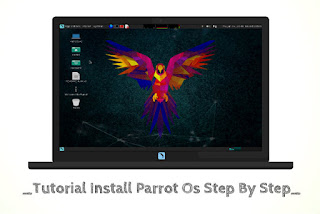
since the release of the latest version of Kali Linux that is Kali Linux 2017.1, that semanjak also I officially left Parrot OS which I have first installed dual boot on my favorite laptop, but often time lapse, I again get a message via Fb by my old friend who happened to ask for my help to install Parrot OS on pc kepunyaanya, that's where I found the idea, I should write the tutorial on this blog that I love this, calculate let my best friend linux also goto science.
Previously I want to explain first about the history of this Parrot OS, as well as in it I will also explain some of the advantages possessed by this Debian derivative OS.
Parrot OS is one of many Debian-based Linux distributions, designed by Frozen team and focused on computer security as well as penetration testing as well as computer forensics and anonymous web browsing.
After we get to know about this Parrot OS, then next I will give a tutorial on how to install Parrot OS inside our favorite laptop / pc hdd, we just prepare all the materials, among others:
Laptop / Pc
Flashdisk 8 Gb
Iso Parrot Os
1. The first step we must create a bootable flashdisk containing the parrot OS in the following way
Creating Bootable Linux With Flashdisk
2. After friends create a bootable flash, the next step is:
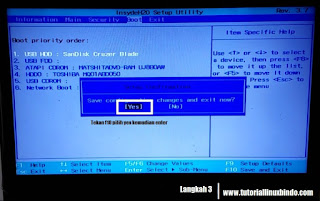
Restart Pc / Laptop companion then enter in bios menu with F12 or Dell or Esc button according to certain laptop.

Set the flash boot position of Os Parrot at the very top.

Read Also: Tutorial Update Repository Parrot Os | After Installation
Press F10 then Yes.
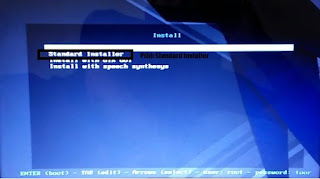
After that we will go into the Parrot Os installation menu, then select install.

Then select the standard install.
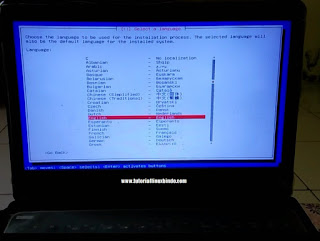
Next we will be brought to the menu for language selection, I recommend to choose [English]
Next to the location selection, just select [United States]
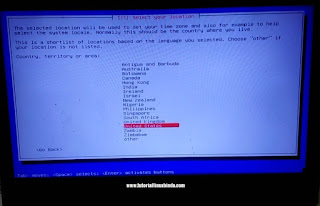
Next we will choose the language for the keyboard, it is recommended to select [American English]

Next detect and mount CD-ROM, in this step should unplug the flash then re-plug it, select Yes then Enter.

Then fill in the password as you please friends.
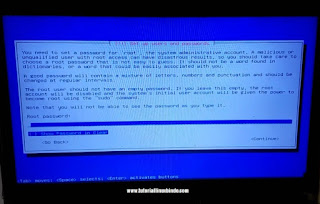
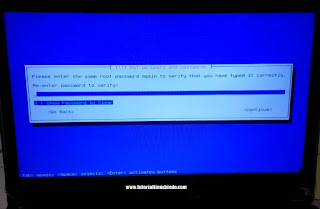
Then repeat again for charging passwords like the previous step.
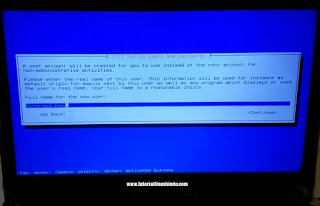
Then fill in the name for the new user, example tutoriallinux.
Next configuration hours by region.
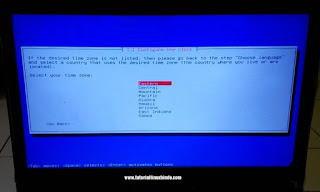
Next stage partition division, we should choose Manual only.
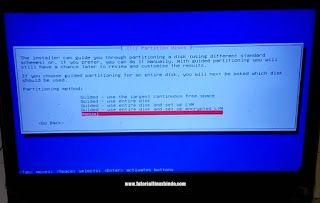
At this stage is expected for the friends to pay attention to it well, because a little mistake can cause the deletion of partition.
Select Free Space which means empty partition, if on the laptop / pc no friends Free Space means friends should make it first.
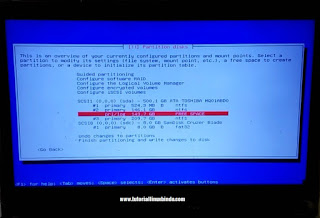
Pilih Create A New Partition untuk membuat partisi Swap.

Leave 2 Gb only for Swap or more at will.

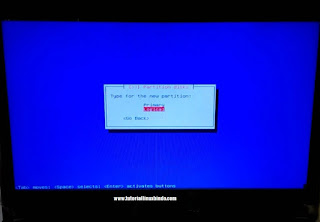
Setting up as shown below.
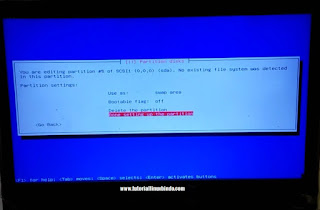
When finished it will come out a new partition called Swap.

Next select Free Space

Follow the steps as shown below.
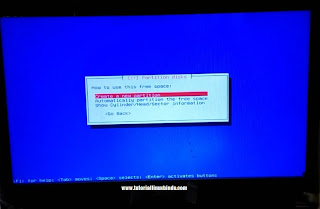
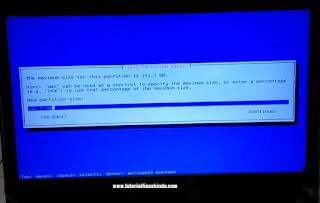
Finally the friends must set it like the following picture.

When finished last select Finish.

Next stage format to read the partitions that have been friends made earlier.
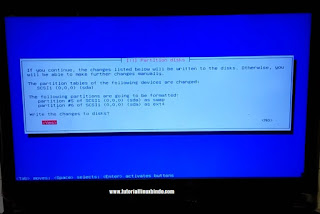
Wait for this process to complete.

Do not forget to select Yes at the time of Install Grub.


With the ending of the following process, which ended the tutorial on how to install Parrot Os dual boot with Windows 10

Enjoy the features provided by Parrot Os.
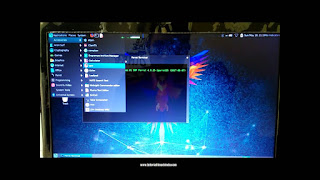
For friends who want to watch the tutorial video install Parrot Os dual Boot with Windows 10 can go directly to youtube channel its Tutorial Linux
thank you for the attention of my friends and all thanks to my colleagues who asked for help to install Parrot Os on his Pc, so all linux friends also got this very useful knowledge, my message as a writer do not forget in amalkan yes, a lot of it so that your colleagues around you also get its benefits.
Nice Job Fri...