How to Create a WordPress Website
Using WordPress websites can be used in two way . One is a free site on their server (wordpress.com), and using their own software, using their own domain / hosting (wordpress.org). The first is to accept some restrictions. As such, they have to use the theme and can not be changed there. As a result, the site is not available on the one hand, on the other hand there is no use of ads-ad sense etc. There are also all types of file formats including video, jargon limitations etc. There is no limit to the use of own domain / hosting.
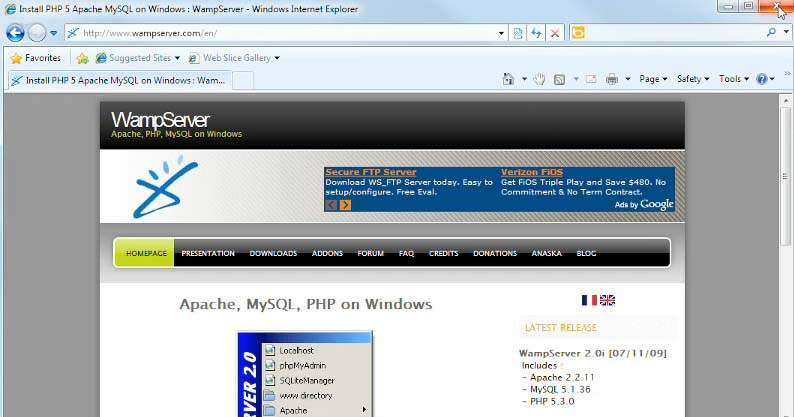
Since their domain / hosting is to be used from the Internet, you do not have to make any changes. But while building your own site you will not be able to upload directly to the internet (if you want to), first verify everything by installing it on your computer, so using your computer as a server requires creating the Internet environment. In other words, your computer needs to install Apache, MySql and PHP software on your computer as a local server. Several free software packages can be used. One method is to download and install WAMP (Windows Apache MySqo and PHP) software. Everything in small software is installed together.
Local Host installation :
. If you do not have the wamp software, download it from www.wampserver.com and install it.
. Right-click the service icon from the task bar and start all the services.
. Open your browser (Internet Explorer or Firefox etc) and type in the address bar http: // localhost Howdy, folk! Open a page by writing. This file contains a file in your localhost folder. The file is index.php in your hard disk C: \ wamp \ www folder. The file that you can keep in the browser is like the one on the Internet. This means that your local server installation is OK and PHP is working properly. This is your root folder. The WordPress software must be installed in this folder.
. If not, then find out the problem and try again .
Install WordPress :
. Download the WordPress version of the last WordPress wordpress (www.wordpress.org) from their site. It's also free.
. Unzip if you have zip. . Copy all files to Local Host's Root folder (C: \ wamp \ www) . Wordpress has its own file named index.php. Replace the previous file and place the new file.
. The files contain a file named wp-config-sample. Change the name of the name from the name and exclude the wp-config section.
. As soon as you try to open the index.php file from the local host, a database connection error message can be found.

. Open phpmyadmin using wamp from the system tray.

. Click the database link to create a new database.

. Create new database by typing a name (such as wordpress), click the create button, then the database will be created.

. Click the Privileges link and select No Password on the bottom side of this page. Click the Go link. Then turn it off.

. To provide database information and other information in the database wp-config file, open the file with Notepad.
. Enter the name of the new database in the database name field. . Enter the name of the user in the admin name.
. Just delete the text from the password of the password of the password and just keep a few commas . Save the file.
. Starting the localhost in the browser, WordPress Setup pages can be found. Give us the name of the site, username, password, email address etc.
. Click Install Wordpress button. At the moment WordPress will be installed and you will be informed.

. Click the Log In button.

. Give your name and password. Wordpress dashboard can be found.
Then all the rest of the work can be done from the dashboard. Once everything is finished in Website, upload the files using your FTP software to your server.
. Apart from WordPress, if you use Joomla or other such software, you can still install this method.

· If you use Macintosh in windows space, use MAMP instead of WAMP.

Good Work
keep it up bro nice work
khub valo dear
This post was promoted with @monitorcap traffic bot & STEEM promotion service.
Send MIN. $1 SBD to @monitorcap bot with your link in MEMO field
and recieve upvotes & resteems for your posts. @monitorcap - where 'seen' matters !
keep posting bro
nice work
good one